




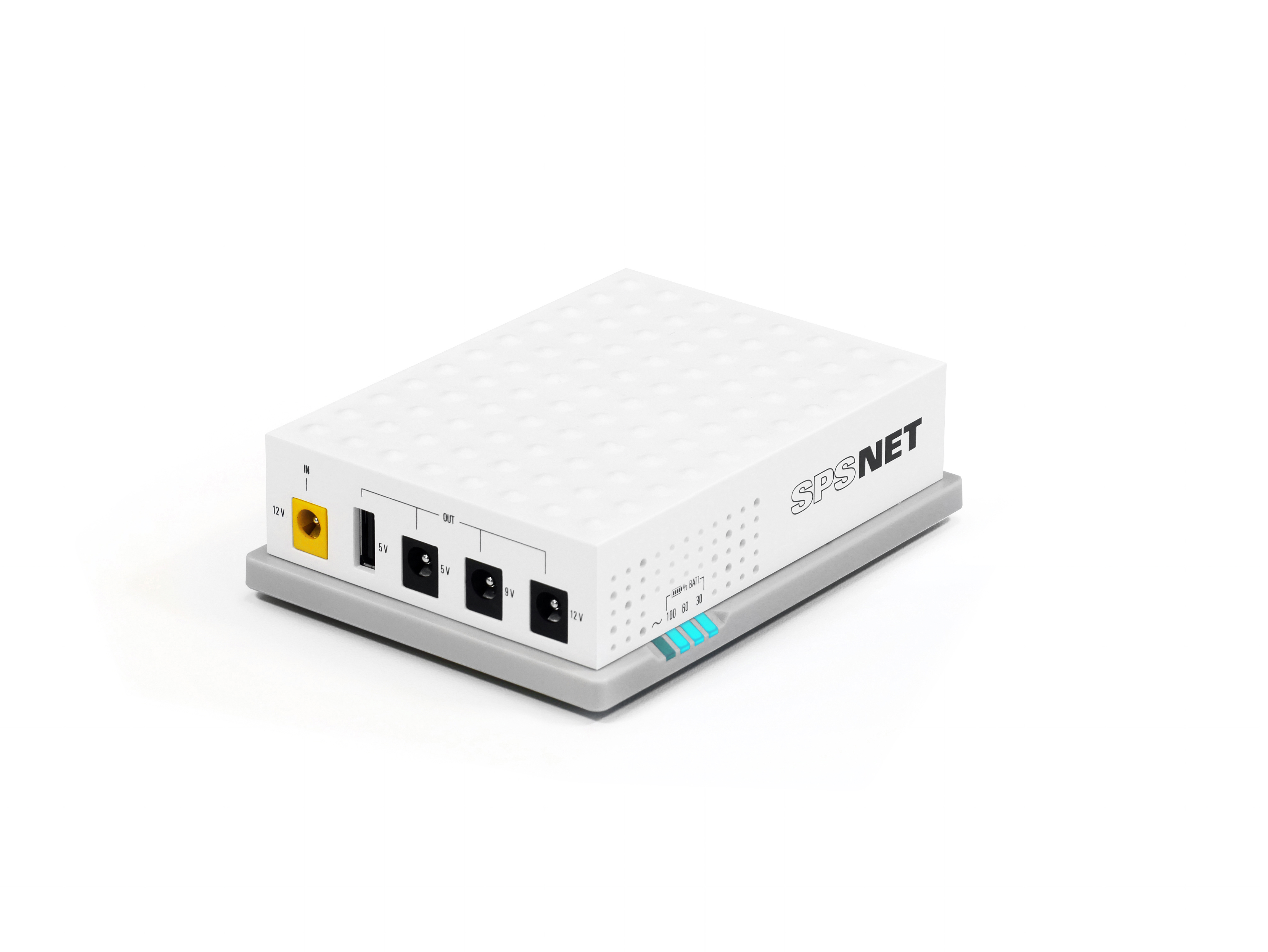


Questions about product
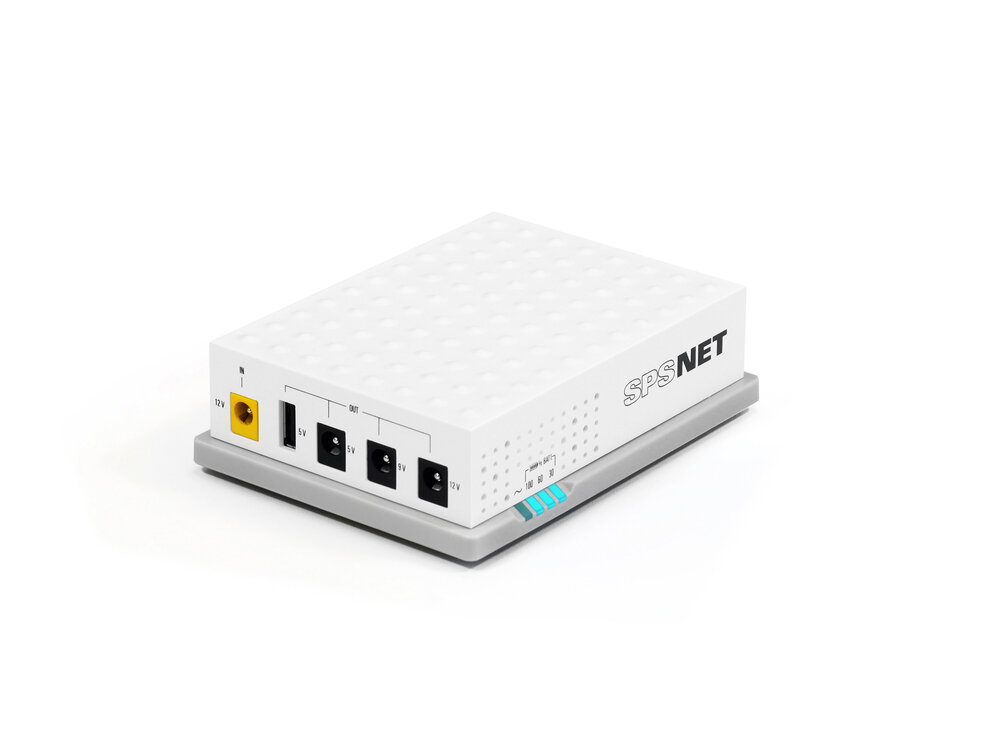
For safety reasons (to prevent battery discharge and/or accidental start-up), the device is delivered with the battery disconnected; therefore, the first step is to connect the battery. To that end, the back cover must first be removed, unscrewing the protective screw. Then, proceed to connect the battery as indicated in the manual and the quick guide. And, finally, replace the back cover. The device is now ready to be turned on for the first time.
The SPS NET has detected an overload or a short circuit. Remove the dual output cable supplying the connected devices. Press and hold down the ON/OFF button for a full second in order to restart the SPS NET.
The battery is not fully charged, or it is approaching the end of its service life and needs to be replaced. Leave the SPS NET connected for four hours in order to charge the battery fully. As time goes on and the battery ages, its uptime is reduced. To order a replacement battery, please contact Salicru.
- UPS Overload Occurred: Remove all non-essential equipment connected to the outlet. Reconnect the computers to the SPS NET, one at a time. SPS NET is compatible with any device that can only be powered to 12V and that is in accordance with the technical specifications of SPS NET.
- Battery is completely discharged: Connect SPS NET to mains power to allow the battery to recharge.
- The UPS may need to be repaired: Contact Salicru technical support to resolve your problem.
Whenever you wish to connect a 12 V device to the SPS NET, you must only use the ‘DC Y-DUAL cable’ that was supplied with the system. You can connect two devices at the same time, provided their combined power consumption does not exceed the power of the SPS NET. The SPS NET must not be connected to devices that require a voltage lower than 12 V. Connecting a device that requires less than 12 V could damage it, and any such damage would not be covered by the Salicru warranty. You must always make sure that the voltage requirements for the device you wish to connect match those of the SPS NET (12 V), in order to avoid damaging your equipment.
Not found your solution?


 MONTAWEB.com