





Questions about software
How do I install WinPower for Windows?
- We access the website www.salicru.com
- We select Products > UPS – uninterruptible power supply and search for our product.
- We enter the Models section, choose our model (VA Power) and click on +info.
- We click on Software and a series of software will appear according to our operating system, where we can also download the UPS manual. We download the software for our operating system, in our case we will download Winpower_setup_Windows.
- Once downloaded, a zip appears that we are going to unzip with the right click "extract all" or "extract here". It will leave us a folder, open it and run it as an administrator.
- A window may appear where we will press YES
- The WinPower installer will start. Next, a tab will open in which we will have to press Yes.
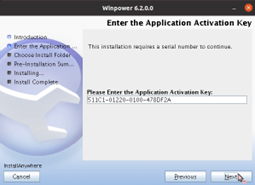
- To continue, click Next.
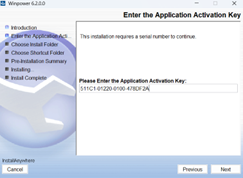
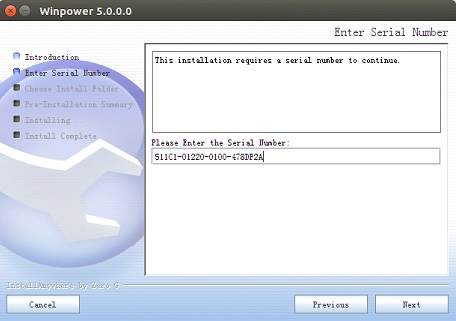
- In the serial section we have to use the following string of numbers: Serial number: 511C1-01220-0100-478DF2A.

- Choose the program's installation path and click Next.

- Select where we want the icons

- To start the installation, click on Install.
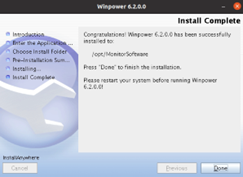
- To finish the installation, click Done.
Where can I find Win Power's serial number?
- We can see the serial number in the section "How do I install Winpower on Windows?"
- The serial number can be found in the software section of the products in the "Documentation" subsection.
- We can download the PDF where it is located or copy it directly from the name of the document.
- The serial number is: "511C1-01220-0100-478DF2A"
How do I access Winpower?
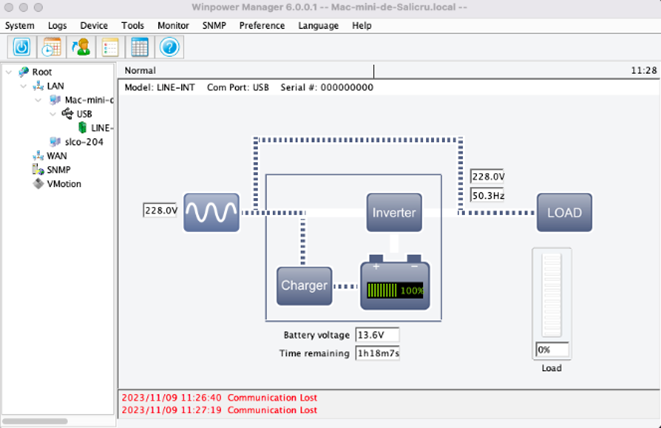
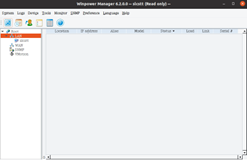
- We must use the monitor to access the program and thus we can monitor our UPS.
- We can also access the monitor through the "Toolbar". Once there, right-click and choose "Start Monitor".
- Another way to access it would be by clicking on the logo of the application.
- It is important to make sure that the Agent is also running.

I’ve configured the options but it doesn’t let me apply the changes.
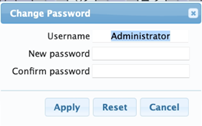
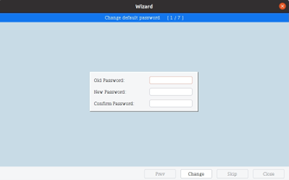
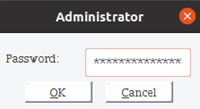
- To apply the changes, you must log in as an administrator.
- The passwords of the software are:
- ViewPower → administrator
- Winpower → Administrator
- PowerMaster → User: admin → Password: admin
How to view and configure the UPS?
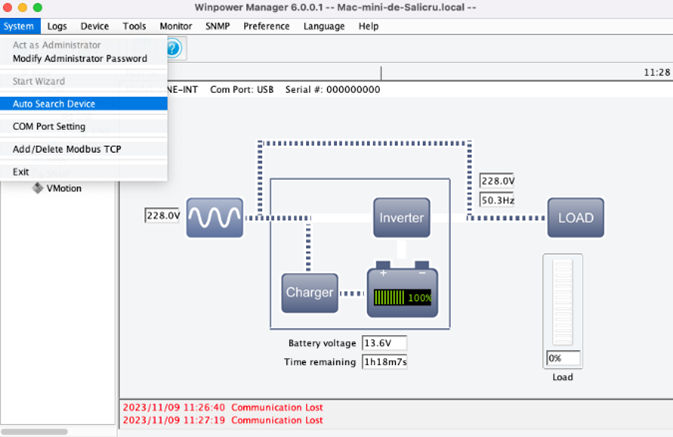
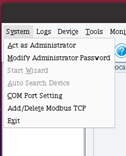
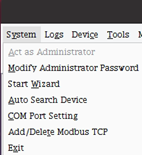
- We enter as an administrator in: "System" > "Work as an Administrator". The default password is: "Administrator".
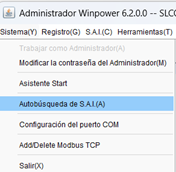
- Go to "System" > "S.A.I. Autosearch", then we will have the UPS configured to be able to see it.
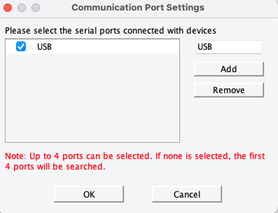
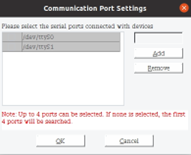
- If it doesn't work, go to "System" > "COM Port Settings" and add the USB to be able to connect to the UPS.
How do I configure UPS email alerts in WinPower?
- We open Winpower.
- Then we access as an administrator in: "System" > "Work as an Administrator". The default password is: "Administrator".
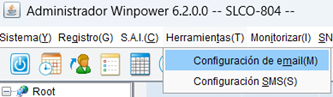
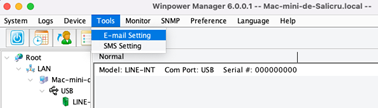
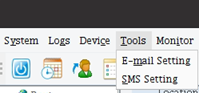
- Click on "Tools" and select "Email Settings".
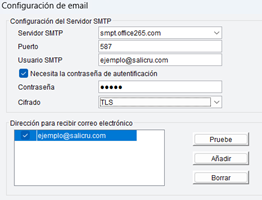
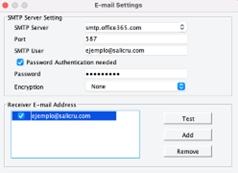
- We may use the same email account to send and receive emails.
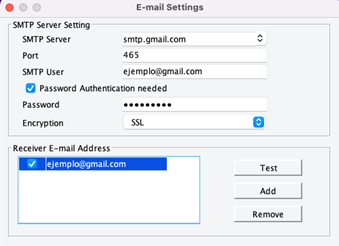
- If in the "SMTP User" section we use a Gmail email, we must make sure that in our Google account we have activated the "Access of insecure applications".
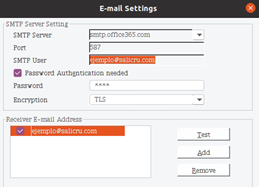
- If you use office365 mail, you must manually fill in the different sections. In the SMTP Server section we enter smtp.office365.com, in Port: 587 and in Encryption: TLS. In the SMTP User section, you must indicate your email address and check the option "You need the authentication password" and enter it. Next, we indicate the email address to which we want to receive emails.
- Now we will only have to select the cases in which Winpower will send us the emails and press the "Accept" button.
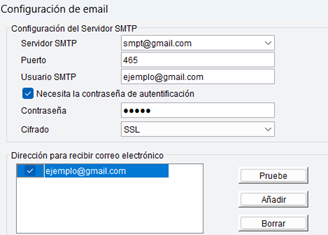
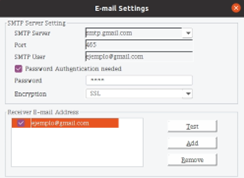
- If you use Gmail mail, you can choose your SMTP in "SMTP Server" and the port it uses will be filled directly. In the SMTP User section, you must indicate your email address and check the option "You need the authentication password" and enter it. Next, we indicate the email address to which we want to receive emails.
- Now we will only have to select the cases in which Winpower will send us the emails and press the "Accept" button.
How can I indicate what the UPS should to do in the event of a fault?
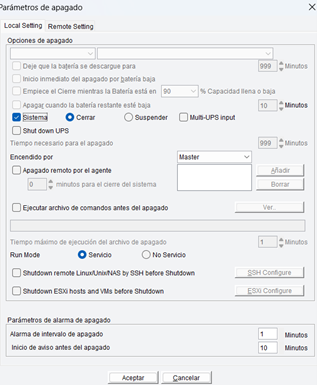
- From Winpower we go to S.A.I and click on "Shutdown parameters".
- We have a number of options:
- If we select the option: "Time needed for shutdown", once the assigned time is over, the computer will shut down or sleep depending on the one we choose in the following options.
- If we activate "System" we will be able to choose what we want our system to do when a fault is detected, either to shut down or suspend the system.
- By means of the option "Remote closure of users" we can configure our system to accept remote orders before shutting down or to execute them itself, indicating in both cases which orders and whether they are remote or not.
- Finally, we can also configure "Shutdown alarm parameters", this option allows us to have the system warn us when the power fails, in addition to configuring at what interval we want it to warn us.
How can I configure the UPS to automatically turn on or off?
- To do this, we have to access the top section "S.A.I/Device." and then "UPS start and shutdown programming".
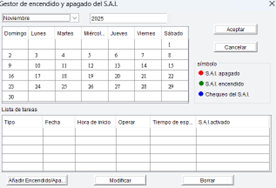
- A window will appear, which, if you have scheduled a start-up or stoppage, will appear with the color code explained.
- To schedule the on/off we will click on "Add On/Off", select the periodicity if we want it to be only once or if we want it to be every week or specific days.
- We will have to choose the schedules and the device that we want to turn off, once everything is configured we will click on "Accept".
- We will be able to check that it appears on the list of pending tasks and indicated in the calendar.
Can I check the status of the UPS and all incidents?
- Yes. To do so, just go to the “Log” section at the top and inside you will find various sections such as event logging where you can check the status of the latest incidents.
- There is also a “Data logging” section where you can consult any transfer of data that the device has performed.
I’ve installed WinPower, but when I try to install ViewPower, it tells me that it has already been installed
- As WinPower can cause issues with Windows when installing ViewPower, it is necessary to uninstall WinPower first and then reinstall it.
Can I send messages to mobiles from WinPower?
- The mobile messaging function is available but requires a component that has to be purchased separately.
Sign up
- Go to www.salicru.com
- From the top menu bar, select “Technical Support”, and then “Online Support” from the drop down menu.
- If you do not have an account, click “Sign up here”.
- Fill in the form with your details to sign up.
- If sign up is successful, you will receive a message to the email address you gave during sign up.
Accessing the chat:
To contact technical support, click “How can we help you?” in the bottom right-hand corner.
A window containing your details will open where you can write your question.



Not found your solution?


 MONTAWEB.com
Welcome to Salicru. Select country/language
Algeria Français
Angola Português
Bahrain English
Congo Français
Côte d'Ivoire Français
Egypt English
Iraq English
Jordan English
Kenya English
Kuwait English
Lebanon English
Libya English
Madagascar Français
Mali Français
Mauritania Français
Morocco Français
Niger Français
Nigeria English
Oman English
Qatar English
Reunion Français
Saudi Arabia English
Senegal Français
South Africa English
Syria English
Tanzania Français
Turkey English
Uganda English
United Arab Emirates English
extralarge
large
tablet
mobile
We use proprietary and third-party cookies to keep track of how our website is used and to be able to improve it,
adapt the content to your tastes and personalise our advertising, marketing and social media posts.
Click on the corresponding buttons to accept all of them, reject them or configure your settings.
Please see our Cookie Policy for more information.

We’ve detected that you're accessing from United States. Would you like to view this page in your country’s version?