






Questions about software
How do I install PowerMaster for Windows?
- We access the website www.salicru.com
- In the top menu we choose "Products", click on UPS – uninterruptible power supply and select the product we want.
- Enter the models section and once you have chosen your UPS click on the +info button
- Click on "Software" and a series of software will appear according to our operating system, where we can also download the UPS manual.
- We download the software for our operating system, in our case we will download "PowerMaster Windows".
- Once downloaded, inside the .zip file, the executable "pm104-setup" appears, we extract it and right-click on the executable and select "Run as administrator".
- The "Installer Wizard" will appear and select the installation language.
- Then a window of "Setup - PowerMaster 1.0.4" will open and we click on "Next".
- We accept the license agreement.
- Component Selection:
- If we use a computer that is connected to the UPS directly through a USB or Serial connection, we must install the "Agent".
- If our computer is powered by a UPS already connected to an "Agent", has a remote control card installed or is connected to a PDU, we must install the "Client".
- We can click on the "Use recommendations" button ("?") to start a help wizard.
- The "Agent" and "Client" cannot be installed on the same computer.
- Choose the destination folder and the start menu.
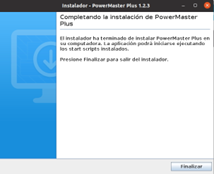
- To finish the installation, click on "Finish".
- By default, our Windows 10 OS takes control of the UPS. We can see that an icon of a battery has appeared at the bottom right of the taskbar.
- We can now configure our power options as a laptop according to our needs.
How do I access PowerMaster once it is installed?
- Option 1:
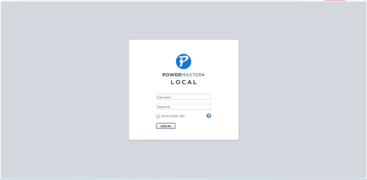
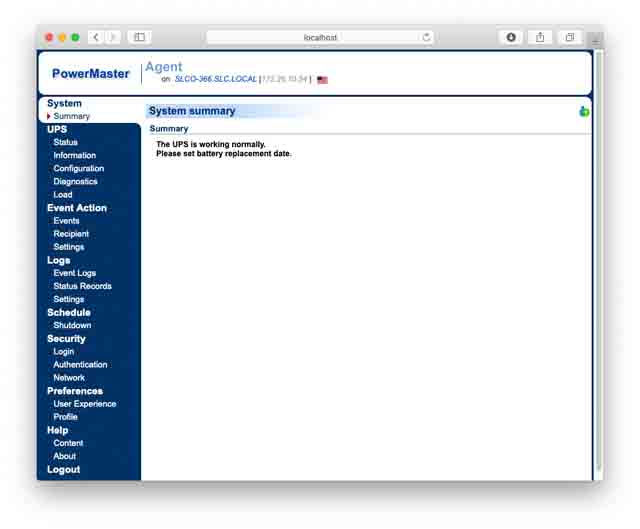
- Open the Windows search engine and type "Power Master" and in the search bar the application "Power Master Agent/Remote" or "Power Master Client/Local" will appear (depending on which one we have installed).
- We click to run it and the browser will open with the web interface.
- Option 2:
- Open our browser and enter the following URL: http://localhost:3052
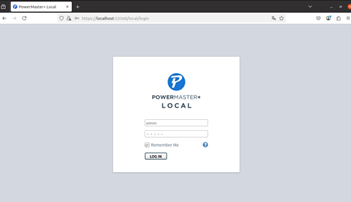
- Note: To log in to PowerMaster, by default, the user is: "admin" and the password: "admin".
How to see and configure the UPS from PowerMaster?
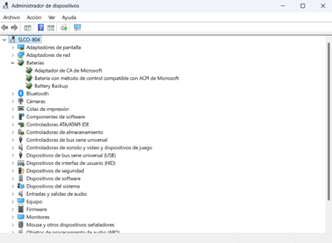
- Once the PowerMaster is installed, enter the Windows search engine and type: "Device management".
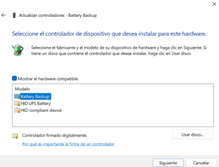
- We search for "Batteries" > "UPS HID Battery" or in my case "Battery Backup".
- Under "UPS HID Battery", right-click "Update Driver" and select "Search for driver software on your computer".
- Click on "Choose from a list of drivers available on the computer".
- In the "Model" window select "HID compatible device" and click "Next".
- We wait for the driver to finish installing and restart the computer.
How do I configure the UPS to operate without PowerMaster?
- We enter the Windows search engine and type: "Computer management".
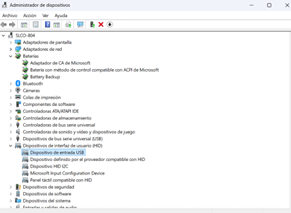
- Inside, we go to "System Tools" > "Device Manager" and search for "User Interface Devices (HID)" > "HID Compatible Device".
- Under "HID compatible device", right-click "Update driver", then click "Find driver software on your computer".
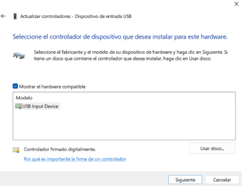
- Click "Choose from a list of drivers available on your computer."
- In the "Model" window, select "UPS HID Battery" and click "Next".
- A battery icon should appear at the bottom right of the taskbar.
What is the PowerMaster user name and password?
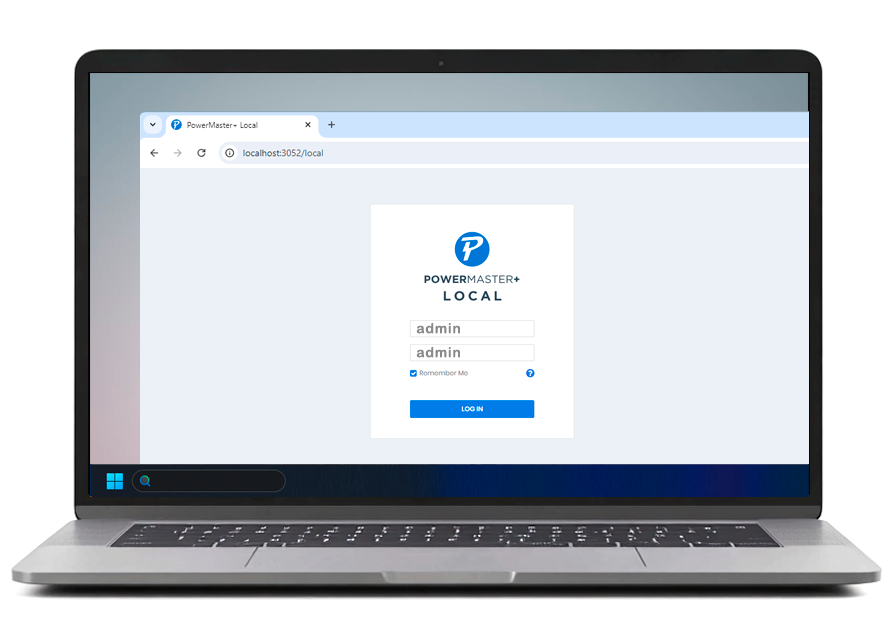
By default, the user name is: “admin” and the password: “admin”.


Not found your solution?


 MONTAWEB.com