






Questions about software

How do I install ViewPower for Windows?
- We access the salicru website
- Click on Products > UPS – Uninterruptible Power Supply
- Once inside, select the series and model > +info.
- We click on the Software tab and select the option corresponding to our operating system, where we can also download the UPS manual. In our case, we will download installViewPower_Windows.
- We unzip the .zip file (unzip into a folder)
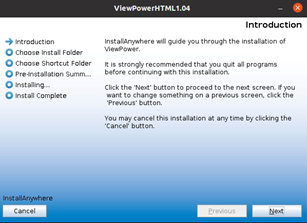
- We will double-click and run as administrator. Next, a window will open where we are notified of the installation of software that wants to make changes to our computer, and in which we will proceed to press Yes.
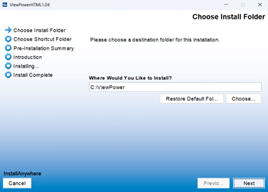
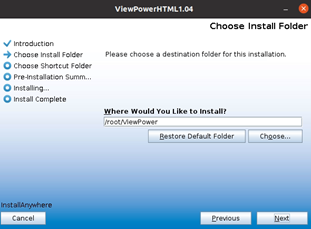
- We put the path where we want > Next to install (we recommend using the default folder)
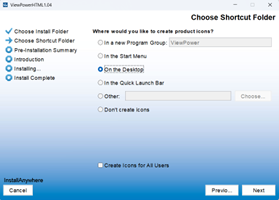
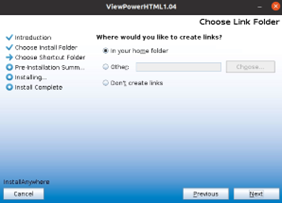
- value="8">We choose whether we want to create a ViewPower shortcut on the desktop.
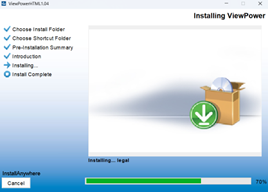
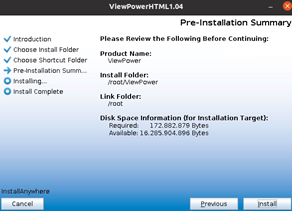
- The program installation begins.
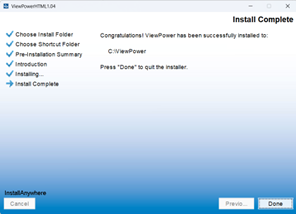
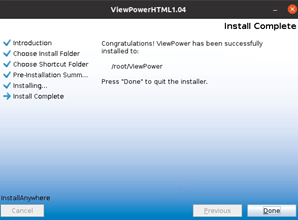
- Once the installation is finished, click on the Done button.
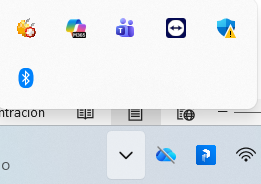
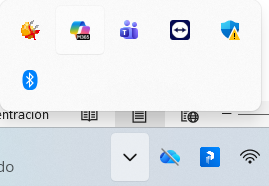
- We will verify that, in the taskbar, the ViewPower icon is displayed as shown in the image.
- If displayed with a green circle (service is active)
- If displayed with a red cross (the service is not active)
I’ve configured the options but it doesn’t let me apply the changes
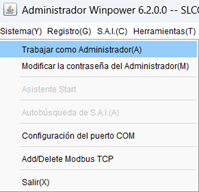
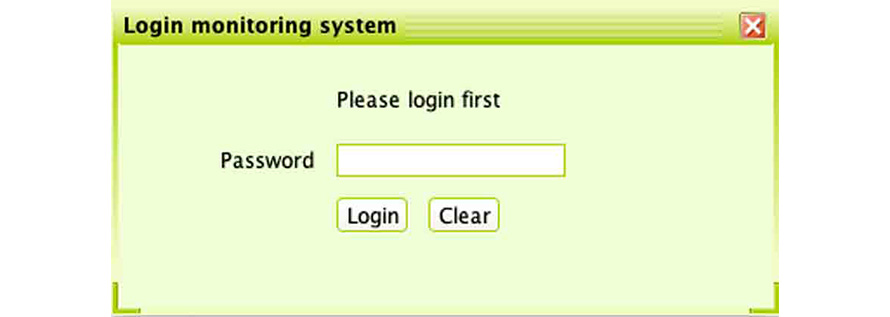
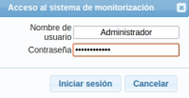
In order to make changes to the program settings, you need to log in as an administrator.
- To log in as an Administrator we have to click on the "Login" button at the top. The default password is "administrator".
How do I configure UPS email alerts in ViewPower?
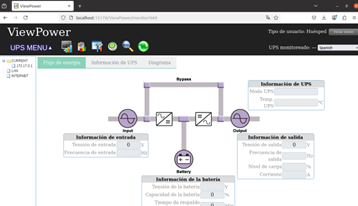
- Open the ViewPower.
- Then we access as an administrator in the menu in the upper right corner and select log in. The default password is: administrator.
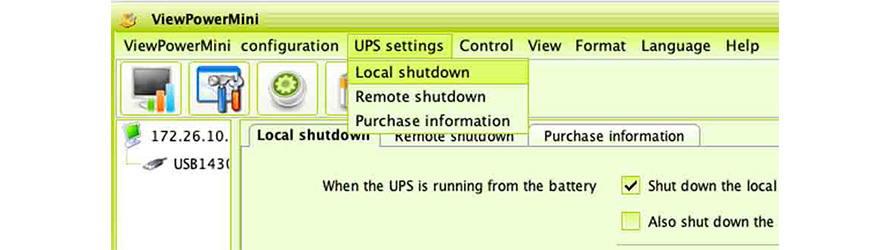
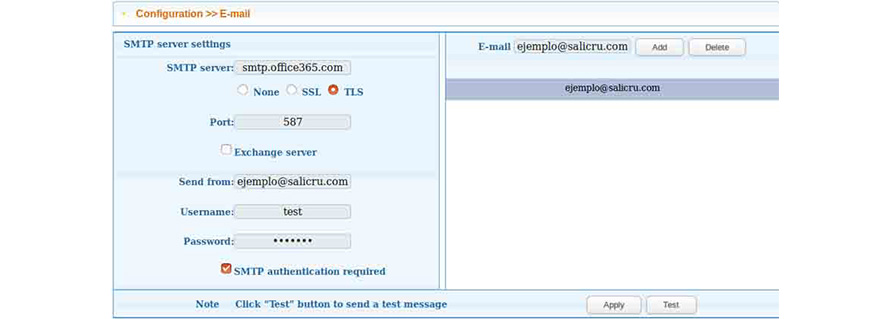
- We will go to UPS MENU > Configuration of > Email/Email.
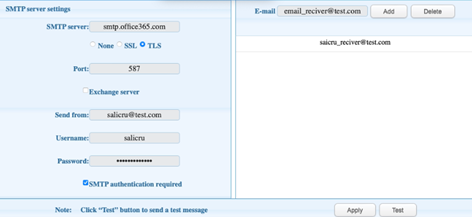
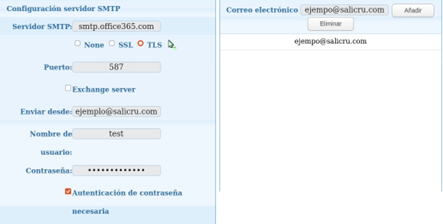
- If you use office365 mail, you must manually fill in the different sections. In the SMTP Server section we enter smtp.office365.com and in Port: 587. In the Send from section, you must indicate your email, email username in Username (email address) and Password authentication required. Next, we indicate the email address to which we want to receive emails in Email.
- Click Apply to save your changes.
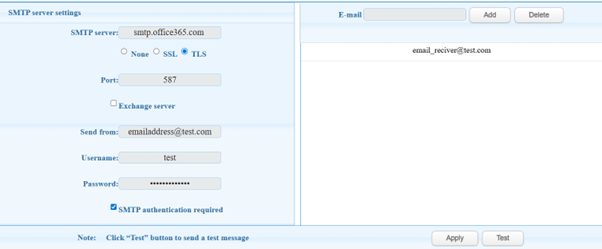
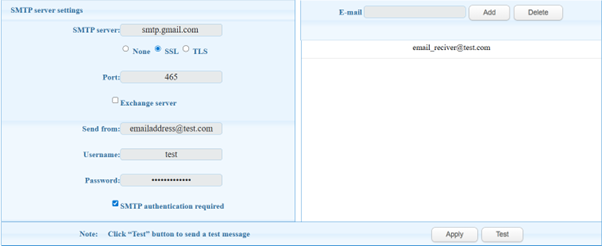
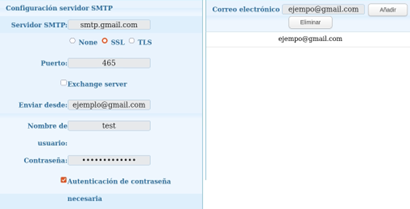
- If you use Gmail mail, you must manually fill in the different sections. In the SMTP Server section we enter smtp.gmail.com, in Port: 465 and SSL. In the Send from section, you must indicate your email, email username in Username (email address) and Password authentication required. Next, we indicate the email address to which we want to receive emails in Email.
NOTE: We recommend creating a new Gmail account for UPS email notifications.
- In order to be able to send alerts by email, we must first access the security options of our Gmail account.
- Turn off the two-step security option.
- Turn on the option to allow access to less secure applications.
- We must click on Apply to save the changes.
Can I send messages to mobiles from ViewPower?
- The mobile messaging function is available but requires a component that has to be purchased separately.
Sign up
- Go to www.salicru.com
- From the top menu bar, select “Technical Support”, and then “Online Support” from the drop down menu.
- If you do not have an account, click “Sign up here”.
- Fill in the form with your details to sign up.
- If sign up is successful, you will receive a message to the email address you gave during sign up.
Accessing the chat:
To contact technical support, click “How can we help you?” in the bottom right-hand corner.
A window containing your details will open where you can write your question.







Not found your solution?


 MONTAWEB.com